SC is a command line program used for communicating with the NT Service controller and services. SC.exe retrieves and sets control information about services. It can be used to configure a specific service, retrieve current status of a service, as well as start/stop a service. Batch files can be created that call various sc.exe commands to various SC.exe commands for automating the startup/shutdown of services.
sc [ServerName] [command] [service name] option1 option2 ...
The option ServerName has the form "\\ServerName"
The simplest use of SC.exe is to query about installed services, drivers, type of services, or type of drivers. For this, command syntax is as follows.
SC [ServerName] query [ServiceName] [type= {driver|service}all}] [type= {own|share|interact|kernel|filesys|rec|adapt}] [state= {active|inactive|all}] [bufsize= BufferSize] [ri= ResumeIndex] [group= GroupName]
The parameters taken by query command are -
ServerName - Specifies the name of the remote server on which the service is located. The name must use the UNC format ("\\myserver"). If this parameter is not used, SC.exe assumes local machine.
ServiceName - Specifies the service name returned by the getkeyname operation. This query parameter is not used in conjunction with other query parameters (other than ServerName).
type= {driver|service|all} - Specifies what to enumerate. The default type is service.
type= {own|share|interact|kernel|filesys|rec|adapt} - Specifies the type of services or type of drivers to enumerate. This parameter needs little bit of explanation.
own - The service runs in its own process. This is the default.
share - The service runs as a shared process. It shares an executable file with other services.
interact - The service can interact with the desktop, receiving input from users.
kernel - Driver
filesys - File system driver
state= {active|inactive|all} - Specifies the started state of the service for which to enumerate. The default state is active.
bufsize= BufferSize - Specifies the size (in bytes) of the enumeration buffer. The default size is 1024 bytes. You may need to increase buffer size when the display resulting from a query exceeds 1 Kb.
ri= ResumeIndex - Specifies the index number at which to begin or resume the enumeration. The default is 0.This parameter is used in conjunction with the bufsize= parameter.
group= GroupName - Specifies the service group to enumerate. The default is all groups.
Please note that a space between parameter and its value is required. For example state=inactive is wrong, it should be stat= inactive
For example, typing SC query messenger at the command prompt and hitting return key results in following display on screen.
SERVICE_NAME: messenger
TYPE : 20 WIN32_SHARE_PROCESS
STATE : 1 STOPPED
(NOT_STOPPABLE, NOT_PAUSABLE, IGNORES_SHUTDOWN)
WIN32_EXIT_CODE : 1077 (0x435)
SERVICE_EXIT_CODE : 0 (0x0)
CHECKPOINT : 0x0
WAIT_HINT : 0x0
Apart from query command, used here, there are a lot other commands that can be used with SC.exe. A brief description of commands available with SC.exe on a Windows XP Pro machine is as follows. For more information type sc in Help and Support Center search text box in Windows XP Pro. Always remember to backup registry and create a System Restore point in Windows, before making any changes to your Windows box using SC.exe.
• boot - Indicates whether the last boot should be saved as the last-known-good configuration.
• config - Modifies the value of a service's entries in the registry and in the Service Control Manager's database.
• continue - Sends a CONTINUE control request to a service in order to resume a paused service.
• control - Sends a CONTROL B to a service.
• create - Creates a subkey and entries for the service in the registry and in the Service Control Manager's database.
• delete - Deletes a service subkey from the registry. If the service is running or if another process has an open handle to the service, then the service is marked for deletion.
• description - Sets the description string for a service.
• enumdepend - Lists the services that cannot run unless the specified service is running.
• failure - Specifies what action to take upon failure of the service.
• getdisplayname - Gets the display name associated with a particular service.
• getkeyname - Gets the key name associated with a particular service, using the display name as input.
• interrogate - Sends an INTERROGATE control request to a service.
• lock - Locks the Service Control Manager's database.
• pause - Sends a PAUSE control request to a service.
• qc - Queries the configuration information for a service.
• qdescription - Displays the description string of a service.
• qfailure - Displays the actions that will be performed if the specified service fails.
• queryex - Obtains and displays extended information about the specified service, driver, type of service, or type of driver.
• querylock - Queries and displays the lock status for the Service Control Manager's database.
• sdset - Sets a service's security descriptor.
• sdshow - Displays a service's security descriptor.
• start - Starts a service running.
• stop - Sends a STOP control request to a service.
Showing posts with label Windows. Show all posts
Showing posts with label Windows. Show all posts


Using Driver Magician to backup and restore device drivers
Taking backup of device drivers installed on your Windows PC helps a lot in case any installed driver gets corrupt or you format your PC and find that driver CDs are either not available or not readable.
Driver Magician is a shareware program for device drivers backup, restoration and update in Windows. It identifies hardware items installed in the system, extracts associated drivers from the hard disk and backs them up to a location of your choice. Then when you format and reinstall/upgrade your operating system, you can restore all the "saved" drivers just as if you have used the original driver CDs.
Driver Magician has a built in driver database which it can update over the Internet. Moreover, it can back up and restore more items such as registry, My Documents and desktop.
Download a copy of Driver Magician setup from http://www.drivermagician.com/ and launch it.

Click on Next button.

Accept the license agreement and click on Next button.

Click on Next button.

Click on Next button.

Click on Next button.

Click on Install button.

Click on Finish button.

Click on Register Later button.

Click on Options button.

Select Back up drivers to a self-extractor (.EXE) in Driver Backup Options, then click on OK button. Now click on Select All button.

Click on Start Backup button and choose a location to save self-extractor (.EXE) file, the click on OK button.

In the above case, we have chosen My Documents folder to save the driver backup file. Driver Magician starts backing up installed drivers and after a few minutes informs us that

Open the My Documents folder and we find that a MyDrivers.exe file has been created. We can now copy this file to a pen driver or burn it on a CD. In case of reinstallation of operating system, we can just run MyDrivers.exe file and reboot PC. All device drivers will be installed.
Driver Magician is a shareware program for device drivers backup, restoration and update in Windows. It identifies hardware items installed in the system, extracts associated drivers from the hard disk and backs them up to a location of your choice. Then when you format and reinstall/upgrade your operating system, you can restore all the "saved" drivers just as if you have used the original driver CDs.
Driver Magician has a built in driver database which it can update over the Internet. Moreover, it can back up and restore more items such as registry, My Documents and desktop.
Download a copy of Driver Magician setup from http://www.drivermagician.com/ and launch it.

Click on Next button.

Accept the license agreement and click on Next button.

Click on Next button.

Click on Next button.

Click on Next button.

Click on Install button.

Click on Finish button.

Click on Register Later button.

Click on Options button.

Select Back up drivers to a self-extractor (.EXE) in Driver Backup Options, then click on OK button. Now click on Select All button.

Click on Start Backup button and choose a location to save self-extractor (.EXE) file, the click on OK button.

In the above case, we have chosen My Documents folder to save the driver backup file. Driver Magician starts backing up installed drivers and after a few minutes informs us that

Open the My Documents folder and we find that a MyDrivers.exe file has been created. We can now copy this file to a pen driver or burn it on a CD. In case of reinstallation of operating system, we can just run MyDrivers.exe file and reboot PC. All device drivers will be installed.
Using CCleaner for crap cleaning
Piriform CCleaner is a useful application for crap cleaning in Windows PCs, i.e., removing temporary internet files, cookies, emptying recycle bin, memory dumps, windows log files, etc. as well as optimizing Windows Registry thereby increasing boosting PC performance. Let's take a look at CCleaner v2.18.878. Installation is very simple, so we skip it and go directly to using the application.
Just launch CCleaner.exe which is installed by default in "C:\Program Files\CCleaner\" folder. Following windows is displayed on your screen.
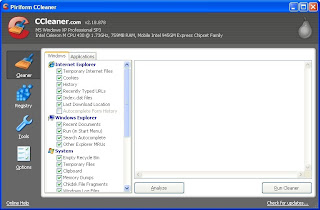
Click on Analyze button.
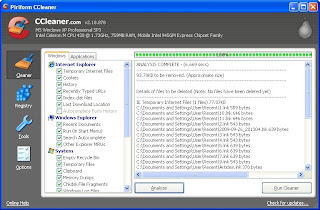
Click on Run Cleaner button. CCleaner cleans the crap left by Internet Explorer, Windows Explorer, and System.
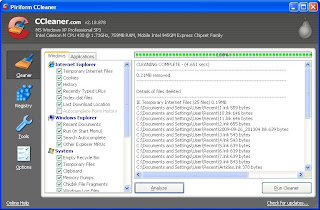
Now click on Applications in left pane.
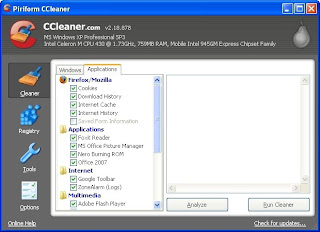
Click on Analyze button.
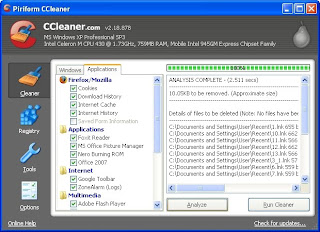
Click on Run Cleaner button. CCleaner cleans the crap left by select applications.
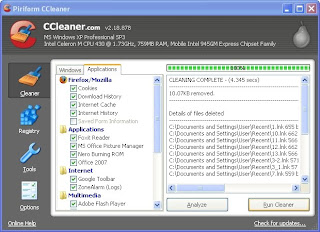
Now click on Registry button in the extreme left pane.
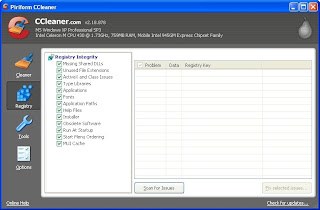
Click on Scan for Issues button.
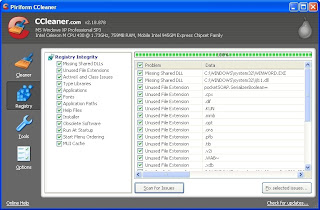
Click on Fix selected issues… button. CCleaner asks you to backup changes to registry. Please do so by clicking the Yes button.
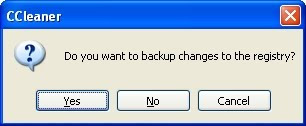
Tell CCleaner where to save changes to be made to registry. Then click on Fix All Selected Issues button.
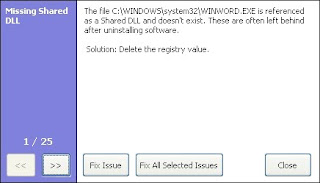
Click on OK button, below.
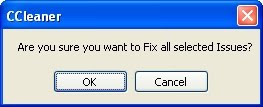
CCleaner fixes all registry related issues. Click on Close button.
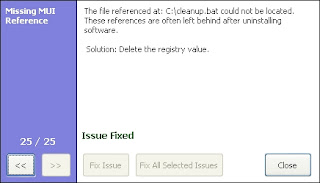
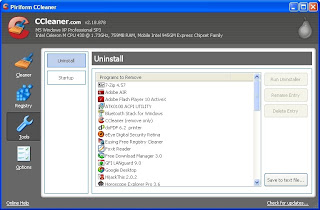
CCleaner also offers you to safely uninstall installed applications. Click on Tools button in the extreme left pane and then click on Uninstall button. You can uninstall an application, rename and/or delete an uninstall entry.
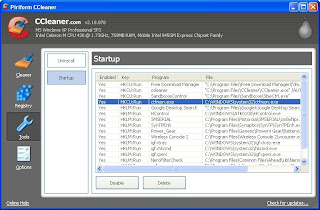
Auto startup programs can also be either disabled or completely removed to save amount of booting time.
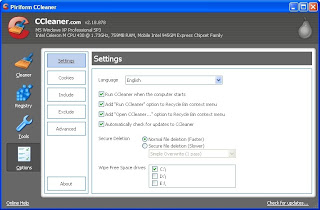
CCleaner can be configured by first clicking Options button then clicking Settings button.
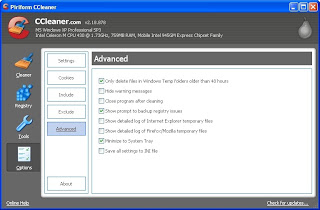
More options can be set by clicking Advanced button.
Just launch CCleaner.exe which is installed by default in "C:\Program Files\CCleaner\" folder. Following windows is displayed on your screen.

Click on Analyze button.

Click on Run Cleaner button. CCleaner cleans the crap left by Internet Explorer, Windows Explorer, and System.

Now click on Applications in left pane.

Click on Analyze button.

Click on Run Cleaner button. CCleaner cleans the crap left by select applications.

Now click on Registry button in the extreme left pane.

Click on Scan for Issues button.

Click on Fix selected issues… button. CCleaner asks you to backup changes to registry. Please do so by clicking the Yes button.

Tell CCleaner where to save changes to be made to registry. Then click on Fix All Selected Issues button.

Click on OK button, below.

CCleaner fixes all registry related issues. Click on Close button.

CCleaner also offers you to safely uninstall installed applications. Click on Tools button in the extreme left pane and then click on Uninstall button. You can uninstall an application, rename and/or delete an uninstall entry.

Auto startup programs can also be either disabled or completely removed to save amount of booting time.

CCleaner can be configured by first clicking Options button then clicking Settings button.

More options can be set by clicking Advanced button.

Subscribe to:
Posts (Atom)
